Double Mac, Single Keyboard: A Hybrid Worker's Field Guide
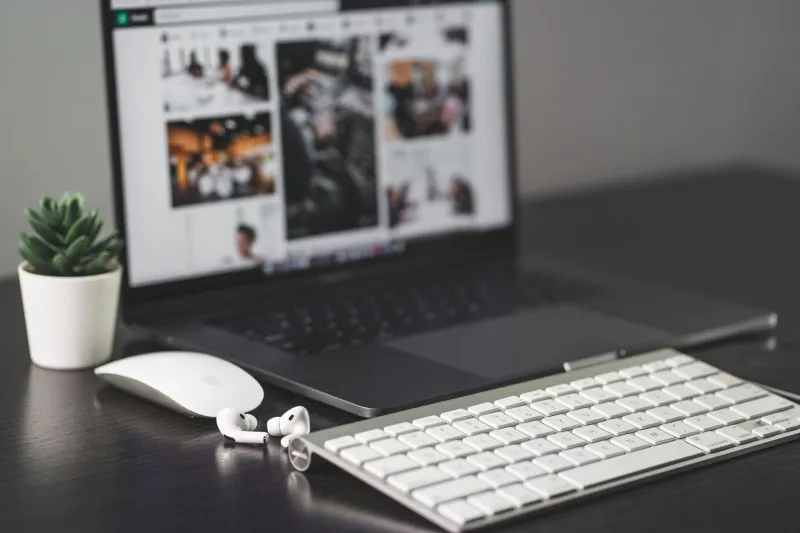
If you work a hybrid schedule in the US, there is a good chance your desk has two Macs on it. One is the work laptop with the company VPN and the security profile you cannot change. The other is your personal MacBook, the one with your photos, your music, and your actual life on it.
You want one keyboard for both. You do not want to re-pair Bluetooth every time you switch. You also do not want to buy a $300 KVM that takes up half your desk.
The good news is that you have options. The bad news is that each one has a catch. Here is the field guide I wish I had.
Option 1: Universal Control, If Both Macs Are Yours
Universal Control is Apple's built-in answer. It lets one keyboard and trackpad control two Macs or iPads when they are near each other.
Setup:
- Put both Macs within about 10 meters, on the same Wi-Fi network, with Bluetooth on.
- On each Mac, open System Settings > Displays > Advanced.
- Turn on Allow your cursor and keyboard to move between any nearby Mac or iPad, and Push through the edge of a display to connect a nearby Mac or iPad.
- Arrange the displays so the Macs sit side by side. Move the cursor to the edge and it crosses over.
Latency is low, and the setup is clean. The catch is accounts. Universal Control works best when both Macs are signed into the same Apple Account with two-factor authentication. A work Mac usually is not. Even if it is, your IT department may block the feature through MDM.
Security matters here, too. Universal Control lets you type into the other Mac, and clipboard behavior can move text between them. That is convenient at home and a compliance problem at work. Do not enable it on a managed Mac without asking.
Option 2: A Multi-Device Bluetooth Keyboard
This is the least dramatic fix, and for most people it is the right one. Keyboards like the Logitech MX Keys S, Keychron K Max series, and NuPhy Air75 V2 can pair with three devices and switch with a key press.
Setup:
- Put the keyboard in pairing mode for slot one.
- Pair it with the work Mac.
- Repeat for slot two with the personal Mac.
- Switch with Fn + 1, Fn + 2, or a dedicated device key.
The delay is usually one to two seconds while the keyboard reconnects. That is fine if you switch a few times a day. It is annoying if you switch every few minutes.
There are two caveats. First, the Globe key. Some multi-device keyboards preserve macOS Globe shortcuts, and some do not. If you rely on Globe + E or Globe + Q, test the keyboard before you keep it. Second, software. Logitech's Options+ and Keychron's Launcher may not be installable on a locked-down work Mac. Basic typing and switching usually work without the software, but macros and remaps may not.
Security is simple: Bluetooth pairing is per device, and there is no network connection between the Macs. That makes this option easier to defend to IT than software KVM.
Option 3: Software KVM
Software KVM tools let one keyboard and mouse control two computers over your local network. Synergy, ShareMouse, and the open-source Deskflow are the names you will see. You install the app on both Macs, designate one as the server, and move the cursor across the screen edge.
Setup:
- Install the app on both Macs.
- Connect them to the same network. Wired Ethernet is better than Wi-Fi.
- Set the Mac with the keyboard as the server and the other as the client.
- Grant Accessibility and Input Monitoring permissions.
- Arrange the screens in the app so the cursor moves in the right direction.
- Enable encryption if the app offers it.
Latency depends on your network. On a wired connection it can feel close to native. On Wi-Fi it can stutter, especially if you are on a video call.
The bigger issue is security. Software KVM is remote control software by another name. It can sync clipboards, which means sensitive work text can end up on your personal Mac. Many corporate security tools will block it outright. If your work Mac is managed, get permission first.
Option 4: A Simple USB Switch
If your work Mac is locked down, skip the clever stuff. Buy a USB switch. It is a small box with a button that routes a USB keyboard between two computers. You plug the keyboard into the switch, the switch into both Macs, and press the button to change machines.
This is not a full KVM. It does not switch your monitor. But it is fast, cheap, and completely invisible to the operating system. There is no pairing, no software, and no network. Latency is zero.
The catch is that it only works with a wired keyboard or a keyboard with a USB dongle. A Bluetooth keyboard will not work with a USB switch. If you already use a wired mechanical keyboard, this is the most reliable option on the list.
The Settings That Bite Every Time
No matter which route you choose, check these settings.
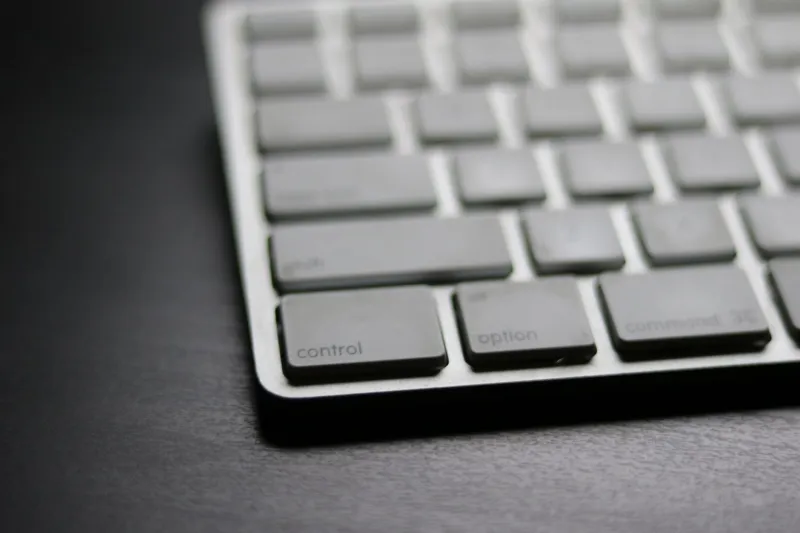
Modifier keys: A keyboard that was set up for Windows may have Command and Option swapped. Open System Settings > Keyboard > Modifier Keys and fix it per keyboard.
Globe key: If you use Globe shortcuts, confirm they work on the Mac you are switching to. Some keyboards change behavior when they switch profiles.
Function keys: On many third-party keyboards, F1 and F2 control brightness and volume only if you hold Fn. Check the keyboard's manual.
Clipboard: Universal Control and software KVM can move text between machines. If you handle sensitive data, turn off clipboard sharing or avoid those tools.
MDM: A work Mac may block Bluetooth pairing, software installs, or Accessibility permissions. Check with IT before you build a workflow around a feature that will disappear at the next policy update.
What I Would Do
If both Macs are personal and signed into the same Apple Account, use Universal Control. It is free, fast, and already installed.
If one Mac is for work, use a multi-device Bluetooth keyboard. The Logitech MX Keys S and Keychron's Mac-friendly models are the safest bets. Pair the work Mac to slot one and your personal Mac to slot two.
If your work Mac is locked down and you switch constantly, use a USB switch with a wired keyboard. It is boring, but it always works.
Skip the expensive KVM unless you also need to share a high-refresh monitor. For keyboard-first users, the goal is simple: one keyboard, two Macs, and no re-pairing ritual every morning.