The Fn Key Isn't Dead Weight: Seven Globe-Key Tricks Worth Learning
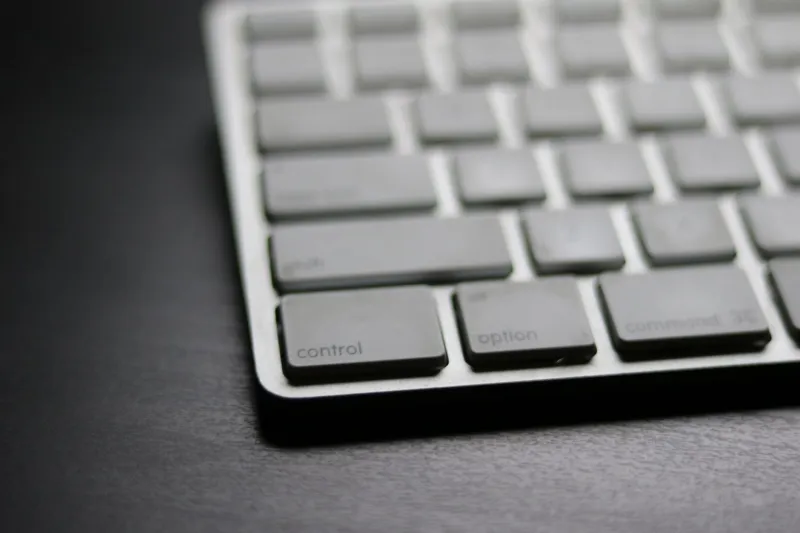
Every Mac keyboard has a key that most of us ignore. On Apple's current keyboards it says Globe. On older models it says Fn. It sits in the bottom-left corner, next to Control, and for years it has been the keyboard equivalent of a spare room: technically useful, rarely visited.
That is a mistake. In 2026, the Globe key is one of the most useful pieces of real estate on a Mac keyboard. It can pull up emoji, start dictation, open Quick Note, and switch input sources without moving your hands. The catch is that Apple hides the good stuff behind a settings pane, and third-party keyboards treat the key very differently.
Here is how to get more out of it.
First, Decide What a Tap Does
Open System Settings > Keyboard and find the Globe key pop-up. Depending on your macOS version, it may live under Keyboard Shortcuts or in the main Keyboard pane. You can set a single tap of Globe to show Emoji & Symbols, change the input source, start dictation, show the Keyboard Viewer, or do nothing.
Most people should leave it on Change Input Source if they type in more than one language. If you only use English, set it to Show Emoji & Symbols. That turns a dead key into a one-press emoji picker.
The Seven Shortcuts Worth Memorizing
These are the Globe combos I use most. They are not secret, but they are easy to forget because Apple does not advertise them.
-
Globe + E: Emoji & Symbols. This is the one everyone should know. It opens the character viewer, which is more than emoji. You get arrows, math symbols, accented letters, currency signs, and a search field that actually works. If you write for a living, this beats digging through menus.
-
Globe + D: Dictation. Press it, talk, and macOS types. Dictation has gotten good enough for short replies, Slack messages, and rough notes. It also respects the microphone you selected in Sound settings, so a desk mic will sound much better than the built-in one.
-
Tap Globe: Switch input sources. If you have a second keyboard layout installed, a tap cycles through it. This is the default behavior on many Macs, and it is the reason the key exists. If nothing happens, you probably only have one input source enabled.
-
Globe + Q: Quick Note. This opens a floating note without taking you out of whatever app you are using. I use it during calls to capture action items. It works even when Notes is not frontmost, which is the point.
-
Globe + N: Notification Center. A quick way to check the calendar, weather, and widgets without grabbing the trackpad. On a laptop, this is faster than a three-finger swipe.
-
Globe + C: Control Center. Wi-Fi, Bluetooth, display brightness, and sound in one keystroke. It is not life-changing, but it keeps your hands on the keyboard.
-
Globe + F: Full screen. This toggles full screen in many apps. It is not universal, and some apps ignore it, but when it works it is faster than hunting for the green button.
A word of caution: Apple has moved these shortcuts around in recent macOS releases, and some of them can be reassigned. If a combo does nothing, check Keyboard settings before assuming the key is broken.
Which Third-Party Keyboards Keep the Magic
This is where things get messy. A keyboard can only trigger Globe shortcuts if it sends the Globe or Fn key signal to macOS. Many mechanical keyboards use Fn as an internal layer key, so the Mac never sees it. The key exists, but it is not talking to macOS.
In my testing, Apple's Magic Keyboard is the reference point. Every Globe behavior works, including the single tap and the combos. Logitech's MX Keys S for Mac is the best third-party option I have tried. It has a dedicated Globe key, and the combos work once Logi Options+ is installed and up to date.
Keychron's Q series and NuPhy's Air75 V2 are more complicated. With the Mac toggle on, a tap often switches input sources, but Globe + Q and Globe + D may not work out of the box because the Fn key is reserved for hardware layers. You can fix this with VIA or Vial remapping, but it is not a plug-and-play experience.
Cheap no-name Bluetooth keyboards are the worst offenders. They may print a Globe icon on the key, but the key sends nothing useful. If Globe shortcuts matter to you, buy from a brand that documents Mac support.
After a macOS Update, Check These Three Things
Major macOS updates have a habit of resetting keyboard behavior. After an update, check these before you file a bug report.
First, open System Settings > Keyboard and confirm the Globe key pop-up still says what you expect. I have seen it reset to Do Nothing after an update.
Second, check Modifier Keys for any third-party keyboard. If Command and Option are swapped, every shortcut feels wrong.
Third, check privacy permissions for remapping tools. Karabiner-Elements, BetterTouchTool, and similar apps need Input Monitoring and Accessibility access. Updates can revoke those permissions, and the Globe key will quietly stop working.
Make It Yours
The Globe key is not sacred. If you never use dictation, remap Globe + D to something you do use. If you use Shortcuts, map a Globe combo to a shortcut that opens your project folder or starts a focus timer. Tools like Karabiner-Elements and BetterTouchTool can turn the key into a custom modifier.
The point is not to memorize seven combos. The point is to stop treating the bottom-left corner of your keyboard as dead space. The Globe key is a second Command key with better manners. Give it a job.