Eight Hours, No Trackpad: A Mac User's Keyboard-Only Reality Check
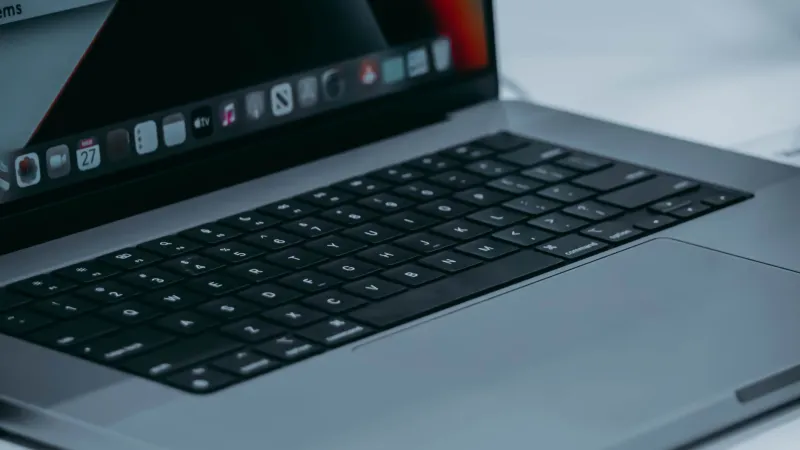
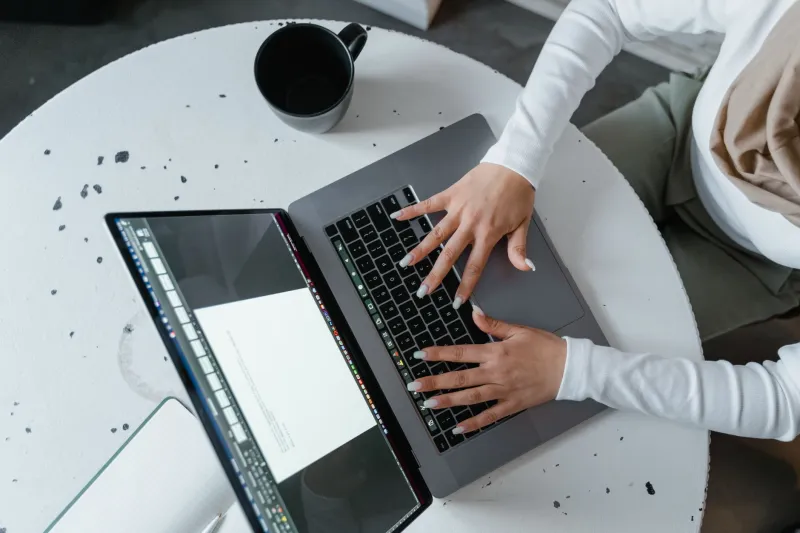
The trackpad is the first thing most of us reach for after waking a Mac. It is also the thing I taped over at 8:45 a.m. on a Tuesday, using a square of cardboard and more painter's tape than dignity should allow. The goal was simple: one full workday, keyboard only. No mouse, no trackpad, no sneaky thumb on the Magic Trackpad hiding under a notebook.
This was not a stunt about becoming a keyboard purist. It was a test of how far macOS and everyday apps have come for people who want to keep their hands on the keys. Spoiler: farther than I expected, and not nearly far enough.
The Setup: Cardboard, Tape, and a Little Hubris
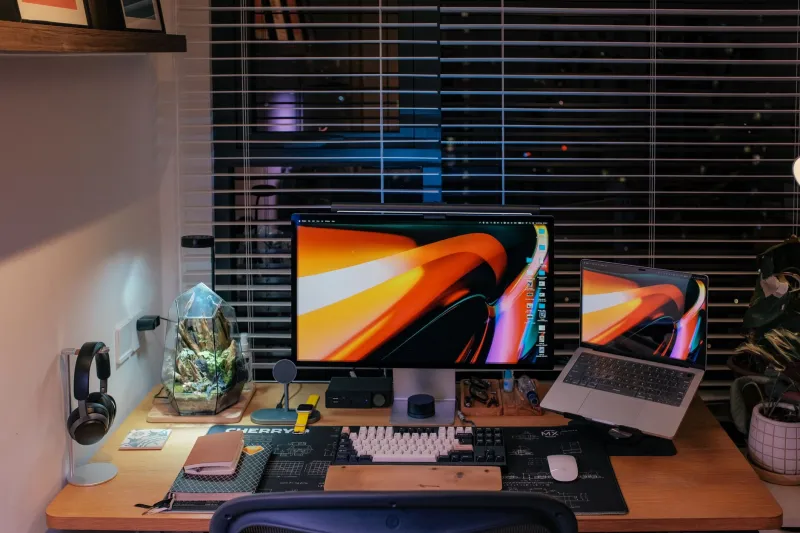
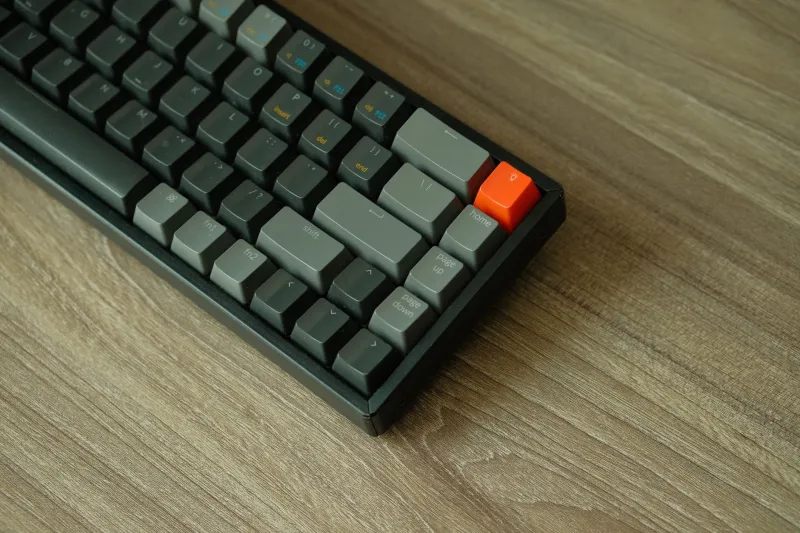
I used a MacBook Pro on the current macOS release with an external mechanical keyboard. The built-in trackpad was physically covered, and I turned on Full Keyboard Access under Accessibility settings so I could tab through controls that normally demand a click. I also disabled the pointer for good measure. My workload for the day was standard knowledge-worker stuff: email, Slack, Safari, a couple of Google Docs, a spreadsheet, a PDF review, and one video call.
The first ten minutes felt like a party trick. By minute thirty, I was muttering at a dropdown menu. By lunch, I had developed a new respect for anyone who navigates Windows or Linux with the keyboard as a default.
What Actually Worked
Spotlight is the hero of this story. Command-Space became my universal front door. I launched apps, opened folders, ran quick calculations, and jumped to files without ever thinking about the Dock. If you take one thing from this experiment, make it a real Spotlight habit. It is faster than hunting with a pointer, and it does not care whether your trackpad is covered.
The second win was window management. Control-Left Arrow and Control-Right Arrow to move between Spaces, Command-Tab for apps, and Command-` for windows within an app kept me from feeling trapped. I am not a full tiling-window convert, but the built-in shortcuts handled most of my layout needs. For anything fussier, I used a keyboard-driven window manager for a few hours and promptly forgot it was there, which is the highest compliment I can give a utility.
Text navigation was smoother than expected. Command-Left and Command-Right jump by line, Option-Left and Option-Right move by word, and Command-Up and Command-Down scroll without touching the trackpad. In Safari, Tab moved through links and form fields well enough for most pages. The space bar scrolled. The arrow keys scrolled. I felt briefly invincible.
Where the Keyboard-Only Fantasy Fell Apart
Web apps are still the weak link. Some sites handle Tab navigation beautifully. Others treat focus states like a suggestion and hide the one button you need behind a custom JavaScript widget. I lost a solid twelve minutes trying to add a label to a Trello-style card before giving up and using a keyboard shortcut inside the app instead. That is the pattern: native apps and well-built web apps are fine; design-forward web apps can be a maze.
Slack was mostly pleasant, but switching between threads and channels required more keystrokes than I wanted. Command-K to jump to a channel is essential. So is Option-Up Arrow to edit your last message. The emoji picker, however, is not built for keyboard-only life unless you enjoy typing colon-plus-name and hoping.
File pickers were the other headache. macOS dialog boxes are better than they used to be, but attaching a file to an email still felt like a tiny bureaucracy. Command-Shift-G in an Open dialog lets you type a path directly, which saved me more than once. If you do not know that shortcut, learn it today.
And then there was the video call. Muting, unmuting, and sharing a window were manageable through app shortcuts, but joining a call from a calendar link required a Tab-heavy dance through Safari. It worked. It was not elegant.
The Shortcuts That Earned Their Keep
A few commands did the heavy lifting all day:
- Command-Space for Spotlight, constantly.
- Command-Tab and Command-` for app and window switching.
- Control-Arrow keys for Spaces.
- Command-Shift-4 for screenshots, then Space to capture a window.
- Command-Shift-G inside Open and Save dialogs to jump to a folder path.
- Tab and Shift-Tab with Full Keyboard Access enabled for dialogs and forms.
- Command-Option-F for Finder search fields in some contexts, though Spotlight usually won.
The surprise was how often I used the Tab key as a primary navigation tool. When Full Keyboard Access is on, macOS exposes controls that normally stay hidden from keyboard users. It is not perfect, and it can make tabbing feel like walking through a very long hallway, but it turns many dead ends into detours.
App-by-App Workarounds
In Safari, I leaned on reader mode, tab groups, and the search field shortcut. Command-L to focus the address bar is obvious, but Command-Shift-\ to show all tabs is the unsung hero. In Google Docs, the menu shortcuts and the built-in keyboard navigation kept me writing, though commenting on a specific phrase without a pointer was clunky. In Numbers, arrow-key navigation plus Tab and Return got me through a simple budget sheet, but anything involving dragging a formula felt like a penalty box.
For PDF review, Preview was surprisingly capable. Space to scroll, Command-F to search, and the annotation tools via keyboard were enough for light markup. For heavier edits, I would have plugged in a mouse and called it a day.
Would I Do It Again?
Not every day. A keyboard-only workday is a useful stress test, not a religion. The experiment exposed how much I use the trackpad as a crutch for small, thoughtless actions: clicking a tab, dismissing a notification, selecting a word. Those actions add up, and replacing them with deliberate keystrokes made me faster in some places and slower in others.
The practical takeaway is smaller and more useful than a full conversion. Pick three pointer habits and replace them with keyboard shortcuts this week. Start with Spotlight, app switching, and dialog navigation. You will not become a keyboard monk, but you will spend less time reaching for the trackpad and more time actually working. And if you ever tape over your trackpad for a day, keep the painter's tape nearby. You will want it for the cardboard, not the Mac.