When Command-Tab Goes Rogue: A 10-Minute Fix-It Guide for Third-Party Keyboards on Your Mac
You unbox a new keyboard, plug it in, and within thirty seconds something is off. Command-C doesn't copy. Command-Tab does nothing, or flashes the app switcher for half a second before snapping shut. Worst case, every shortcut fires but the modifier in the wrong direction, so you spend an afternoon closing windows you meant to save.
This is the most common complaint we get about third-party keyboards on macOS, and it's almost always one of six things. Grab a coffee and set a timer — this checklist is designed to take ten minutes, and it works on any board from any manufacturer.
Why this happens in the first place
macOS doesn't care what's printed on your keycaps. It reads USB HID usage codes, and the four modifier codes map cleanly: LeftCtrl becomes Control, LeftShift becomes Shift, LeftAlt becomes Option, and LeftGUI becomes Command.
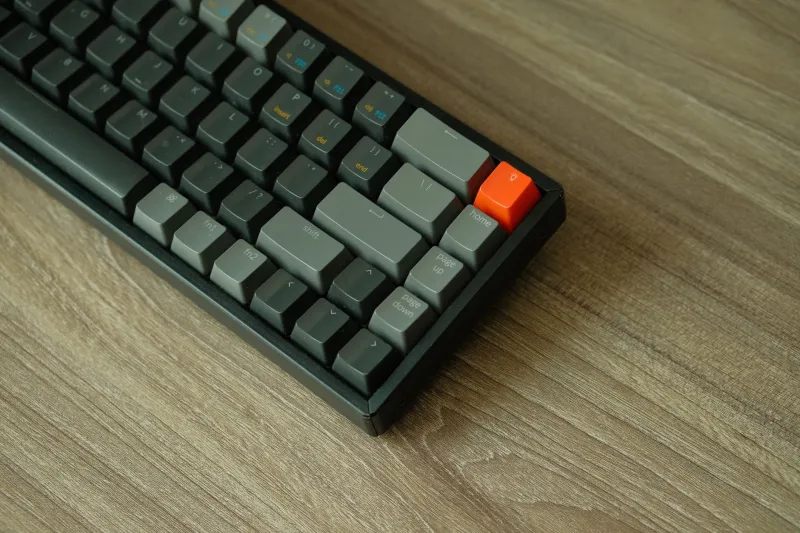
The problem is physical position. Windows bottom rows read Ctrl, Win, Alt, Space. Apple's read Control, Option, Command, Space. So a keyboard in Windows mode sends Command from the second key and Option from the third — the exact reverse of what your thumbs have spent years learning. Everything technically works; it just feels like someone swapped two keys while you were in the bathroom.
There are secondary culprits too: Fn-layer media keys that macOS ignores, ISO-layout boards sending codes that don't match a US input source, and a handful of apps that grab global shortcuts before the system sees them.
The 10-minute diagnostic
Minutes 1–2: flip the hardware switch
Before you touch software, find the mode switch. Keychron puts it on the back edge. NuPhy and several others bury it behind an Fn combination. Logitech uses an Easy-Switch row for devices plus a separate OS pairing in Options+. Most boards ship in Windows mode because that's the bigger market.
Change the mode, then physically unplug the keyboard or power it off and back on. A lot of boards only read the switch state at boot, and a surprising number of support tickets are solved right here.
Minutes 3–4: check System Settings' modifier remap
Go to System Settings → Keyboard → Keyboard Shortcuts → Modifier Keys. There's a dropdown at the top that lets you configure each connected keyboard separately — important, because otherwise you'll remap your MacBook's built-in keyboard too.
If the board is stuck in Windows mode with no hardware option, you can swap Option and Command here and get Apple's physical layout back. What you can't fix this way is the keycap text, so either order a Mac legend set or memorize the lie.
Minutes 5–6: verify what the keys actually send
Install Karabiner-Elements — it's free, open source, and the single most useful diagnostic tool on macOS. Open Karabiner-EventViewer and press every modifier. You'll see the literal HID codes coming off the board. This is how you find out whether a vendor's "Mac mode" is real or just a sticker change.
If you need a permanent fix, build it in Karabiner-Elements under Complex Modifications rather than piling on more system-level remaps. One layer of remapping is manageable; three stacked on top of each other is how people end up reinstalling macOS out of spite.
One gotcha: if Karabiner-Elements shows a Secure Input warning, your remaps are being bypassed on purpose. Password fields, some banking apps, and a few password managers enable Secure Input to block keyloggers — which also blocks legitimate remapping. It's not a bug; it's the system protecting you.
Minutes 7–8: hunt down per-app conflicts
If the broken shortcuts are limited to one app, the keyboard is innocent. Check two places:
- System Settings → Keyboard → Keyboard Shortcuts → App Shortcuts, where app-specific overrides hide.
- The app's own keybinding panel. VS Code, Photoshop, Slack, and most Adobe tools keep their own maps, and VS Code in particular will happily hold onto a chord you've assigned to Raycast.
Also check what's running in the menu bar. Spotlight owns Command-Space, but Alfred and Raycast both want it. Rectangle and Magnet both grab Control-Option-arrow combinations. If two utilities claim the same chord, the winner is whoever launched first, and it can change after a reboot.
Minute 9: confirm your input source is actually US
Open System Settings → Keyboard → Text Input → Input Sources. You want U.S., not ABC, not British, not U.S. International. A mismatched input source doesn't scramble Command and Option, but it does break shortcuts that reference punctuation — Command-backtick for window cycling, Command-backslash in Xcode, anything involving a bracket.
While you're there, turn off "Automatically switch to a document's input source" if it keeps flipping on you mid-task.
Minute 10: rule out the connection
Plug in a cable. If the shortcuts behave over USB-C but not over Bluetooth, you've got a pairing problem, not a mapping problem — unpair, re-pair, and test again. Avoid unpowered hubs; we've seen keyboards drop modifier states entirely when a bus-powered dock browns out under load. And if there's a 2.4GHz dongle involved, move it away from USB 3 ports, which are notorious for interference.
The terminal sanity check
If you suspect leftover remaps from an old utility, macOS can tell you. Run hidutil property --get "UserKeyMapping" to see any active key remapping. Clearing it with hidutil property --set '{"UserKeyMapping":[]}' resets to stock, though the change reverts on reboot unless you've scripted it to persist.
For app shortcut oddities, defaults read -g NSUserKeyEquivalents dumps the global menu-item overrides that accumulate over years of customizing.
When to send the board back
Three things are dealbreakers in our book. If the keyboard forgets its Mac mode every time it sleeps, that's a firmware bug worth returning. If remapping requires a Windows-only executable, the manufacturer isn't serious about Mac users. And if modifiers intermittently drop out — you type Command-C and get a plain C — no amount of software configuration will save you.
The takeaway: start with the hardware switch, verify with EventViewer, and only then start remapping. Nine times out of ten, the fix is a two-dollar switch on the back of the board, not an afternoon in System Settings.