The $100 Ceiling: Four Budget Mac Keyboards Survive a Real Workweek
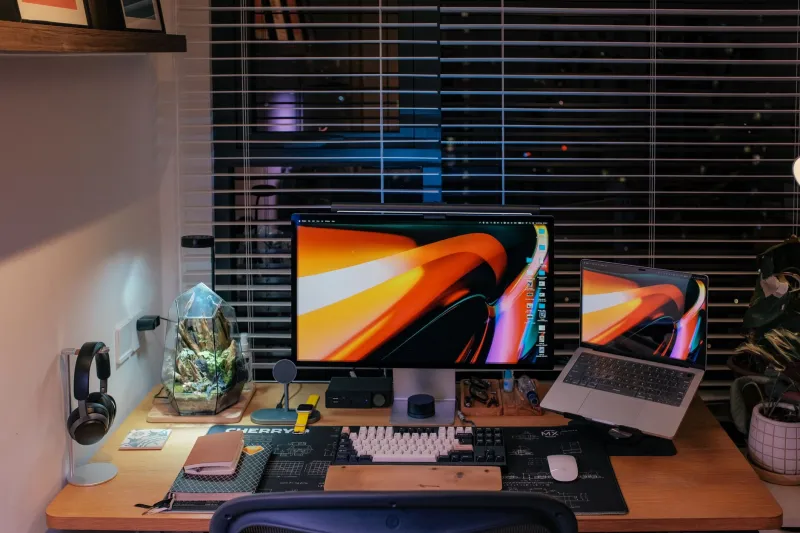
Budget keyboards are having a moment. You can spend $200 on a machined aluminum slab with custom switches and still end up fiddling with a Windows-first layout on a Mac. Or you can spend less than $100 and get something that mostly works, as long as you know which corners got cut.
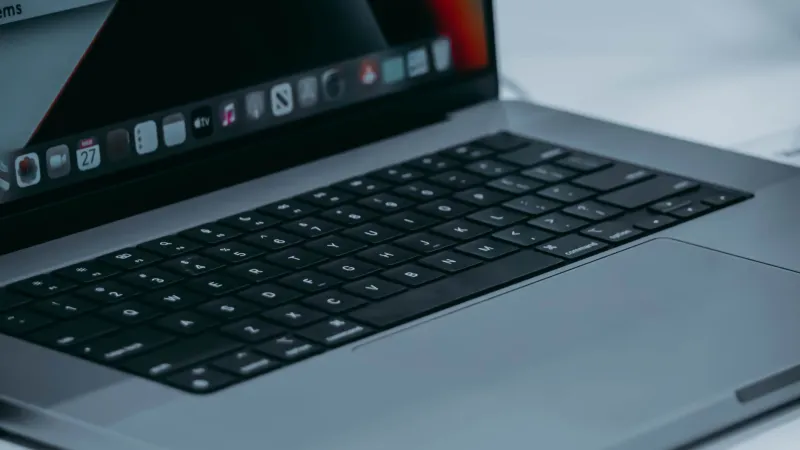
To find out which corners matter, I ran four affordable boards through a real workweek: email, Slack, Safari, Google Docs, a spreadsheet, a couple of video calls, and enough copy-paste to make my wrists ache. The rules were simple. Each keyboard got a full day as my only input device, paired over Bluetooth or USB-C, with the Mac's built-in keyboard folded shut. I judged layout, build, wireless reliability, and the little macOS quirks that reviews usually skip.
How We Tested
Every board had to handle the same five jobs: wake the Mac from sleep, switch between three apps, navigate a browser, type a few hundred words, and survive a video call without dropping its connection. I also paid attention to keycap legends, modifier placement, and whether the function row did anything useful on macOS. Price mattered, but only as a tiebreaker. A $60 keyboard with a broken Command key is not a value.
The Contenders
Keychron K3 Pro: The Mac-Friendly Default
Street price: usually just under $100.
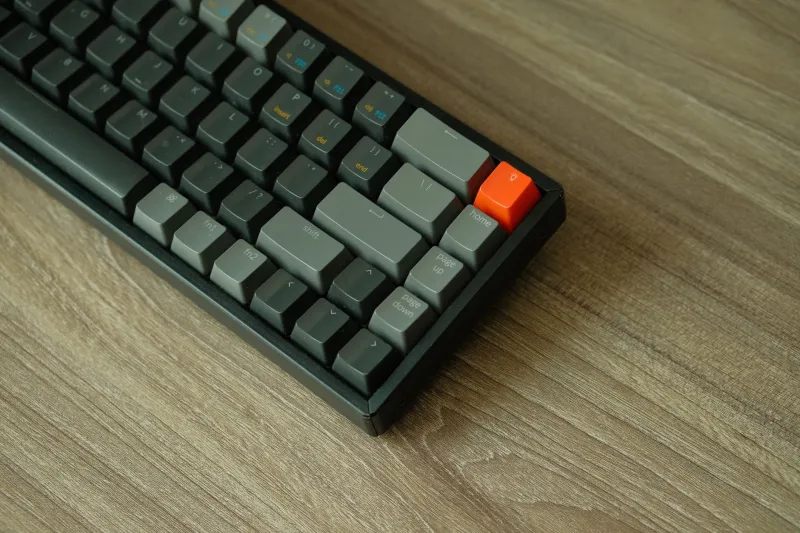
The K3 Pro is the board I would recommend first to most Mac users shopping in this range. It has a physical Mac/Windows toggle, ships with Mac-friendly keycaps, and puts Command and Option where your fingers expect them. The low-profile layout is compact without feeling cramped, and Bluetooth switching between three devices was reliable all week. I paired it with a MacBook Pro and an iPad and never had to repair either one.
The build is good for the money, not luxurious. The aluminum frame gives it a solid feel, but the plastic underside and thin keycaps remind you where the savings came from. The function row is customizable, which is nice if you care, and the keyboard can run wired over USB-C when Bluetooth gets moody. The biggest knock is the typing feel: the low-profile switches are fine, not great, and the stabilizers on the space bar had a faint rattle out of the box.
Verdict: the safest pick for a US Mac user who wants a familiar layout and does not want to remap half the keyboard.
Logitech MX Keys Mini: The Quiet Office Compromiser
Street price: $99.99, often less on sale.
The MX Keys Mini is the board you buy when you want a clean desk and a quiet office. It has a Mac-specific layout, excellent key legends, and a low-profile design that feels more polished than most budget mechanical boards. Bluetooth reliability was excellent, and the backlighting sensor is genuinely useful in a dim room. Battery life is good enough that I forgot about charging it, which is the ideal outcome.
The typing experience is where it gets divisive. The keys are shallow and a little mushy compared with a mechanical switch, and the spacing takes a day to get used to. I also missed having a dedicated Insert or Print Screen key, though Mac users will not care. The bigger issue is repairability and long-term wear. This is a sealed consumer keyboard, not a hobbyist board. If a key fails after a couple of years, you are buying a new one.
Verdict: best for quiet offices and people who value a native Mac layout over mechanical feel.
Royal Kludge RK84: The Cheap-and-Cheerful Wildcard
Street price: around $60.
The RK84 is the value pick that makes you work for it. It is a 75% mechanical board with a chunky plastic case, decent stock switches, and a surprisingly solid typing feel for the money. It supports Bluetooth, 2.4GHz, and wired USB-C, which is a lot of flexibility at this price. The hot-swappable sockets are a nice bonus if you want to experiment with switches later.
But the Mac experience is not plug-and-play. The board ships with Windows legends, so you will be swapping keycaps or remapping modifiers in your head for the first hour. The function row shortcuts are not always where macOS expects them, and the software is Windows-first. Bluetooth worked fine in my testing, but switching between devices required a manual reminder from the manual. The case also flexes more than the Keychron, and the stabilizers needed a little lube to stop rattling.
Verdict: the best pick if you enjoy tinkering and want mechanical feel on a tight budget. Not the best pick if you want to unbox and forget.
Epomaker TH80 SE: The Gasket-Mount Overachiever
Street price: around $89.
The TH80 SE is the board that feels more expensive than it is. The gasket-mounted design gives it a softer, bouncier typing feel than the other three, and the stock sound is genuinely pleasant. It is a 75% layout with a rotary knob, which I ended up using more than expected for volume. Build quality is good for the price, and the keycaps are a step above the RK84's stock set.
The macOS quirks are real, though. The layout is Windows-first out of the box, and while VIA support helps, you will need to spend time remapping Command and Option. Bluetooth was stable in my week of testing, but the connection occasionally took a second longer to wake than the Keychron or Logitech. The knob is also not fully programmable without digging into software, which is a minor annoyance if you wanted it to control something other than volume.
Verdict: the best typing feel in the bracket, but only if you are willing to configure it. It rewards patience more than plug-and-play convenience.
The Verdict
If you want the least friction, buy the Keychron K3 Pro. It understands macOS, it pairs reliably, and it does not ask you to learn a new layout on day one. If you want the quietest board for an office or a shared apartment, the Logitech MX Keys Mini is the better fit, even if it feels less fun to type on. The RK84 is the budget experimenter's pick, and the Epomaker TH80 SE is the choice for someone who wants a nicer typing feel and does not mind a setup session.
The larger lesson is that sub-$100 keyboards are not all compromised in the same way. Some cut build quality. Some cut macOS polish. Some cut repairability. The trick is deciding which cut you can live with. For most Mac users, layout and Bluetooth reliability matter more than a fancy case. Spend your $100 accordingly.