Small Board, Big Questions: What a 75% Keyboard Really Costs Mac Users
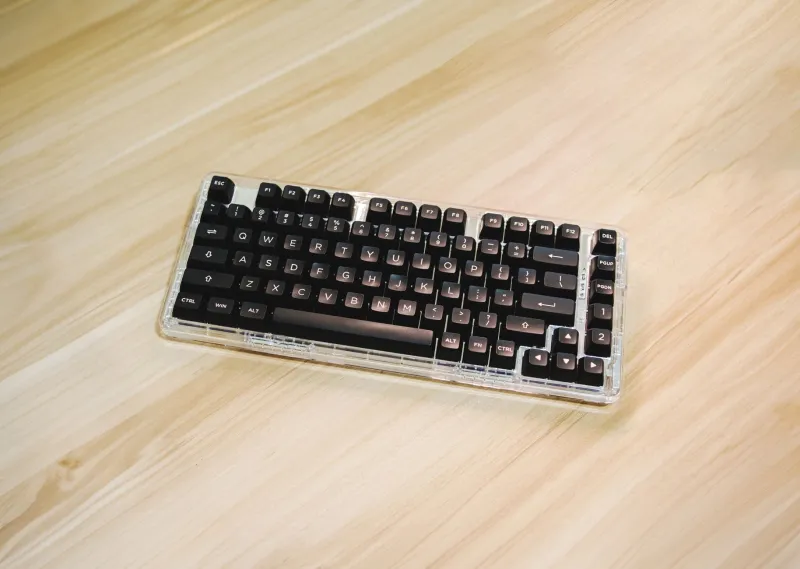
The 75% keyboard has become the default recommendation for anyone who wants a smaller desk setup without giving up arrow keys. It looks tidy, it leaves room for a mouse, and it usually feels more substantial than a laptop keyboard. For Mac users, though, the appeal comes with a catch. A compact board can quietly break the muscle memory you have built around macOS shortcuts, media controls, and Touch ID.
That does not mean you should avoid 75% keyboards. It means you should buy one with your eyes open. Here is what actually changes when you move from an Apple keyboard to a compact third-party board, plus the workarounds that make the transition less annoying.
What a 75% board actually gives you
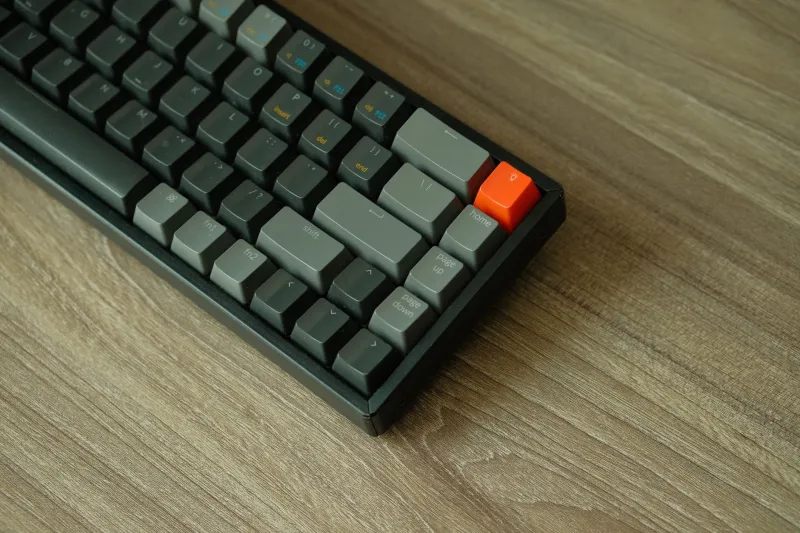
A 75% layout typically keeps the main alphanumeric block, the function row, arrow keys, and a compressed navigation cluster. It removes the numpad and tightens everything else. That is a great fit for a Mac mini, a small apartment desk, or a hybrid setup where the keyboard moves between home and office.
Many 75% boards also support Bluetooth, wired USB-C, or both. Some have hot-swappable switches, which makes it easy to change the feel without buying a new keyboard. On paper, it is a practical compromise. In practice, the macOS details are where things get messy.
Where the Mac muscle memory goes
Function row and media keys
Apple keyboards treat the top row as media and system controls by default. You press F1 or F2 for brightness, F10 or F11 for volume, and so on. Third-party 75% boards often label those keys as F1 through F12, with media controls hidden behind an Fn layer. That is not a dealbreaker, but it changes how you work.
You can flip macOS to treat the top row as standard function keys in System Settings, but that affects how Apple keyboards behave too. If you use an external board and a MacBook, you may end up with inconsistent behavior. The better fix is usually a keyboard with a Mac mode or a remapping tool that lets you assign brightness, volume, play/pause, and Mission Control to the keys you actually reach for.
Touch ID and power
This is the big one. Apple's Magic Keyboard with Touch ID gives you fingerprint login, Apple Pay confirmation, and quick user switching. No third-party 75% keyboard has Touch ID. If you rely on it, you are giving up a genuine convenience. You can still use an Apple Watch to unlock your Mac, or type your password, but neither feels as seamless.
Some compact boards also move or omit the power key. That is rarely a problem on a desktop Mac, but it matters if you are used to tapping a key to lock the screen or put the display to sleep. Check the layout before you buy.
The Globe and Fn keys
The Globe key on Apple keyboards opens emoji, dictation, and other system shortcuts. On a third-party 75% board, the Fn key is usually a hardware layer key, not a macOS Globe key. You can remap it, but the results depend on the keyboard's firmware and the software you use. If you dictate often or use emoji shortcuts all day, test this early.
Workarounds that actually help
A 75% keyboard is not doomed on macOS. The most reliable approach is to pick a board that either has a Mac mode or works well with VIA or QMK. These tools let you remap keys at the firmware level, so the keyboard sends the codes macOS expects. That is more dependable than stacking software remappers on top of each other.
Karabiner-Elements is the other big lever. It can swap modifiers, turn Caps Lock into a Hyper key, and create rules for specific keyboards. If your 75% board has a few odd keys, Karabiner can smooth them out. The catch is that it runs on your Mac, not on the keyboard, so the remap follows the computer rather than the board.
For media keys, start by checking whether the keyboard has a Mac-specific Fn layer. Many do, even if the legends do not advertise it. If not, map the keys you use most: brightness, volume, play/pause, and Mission Control. Leave the rest on the function row and learn the new positions.
A buying checklist for Mac users
Before you order a 75% keyboard, run through these questions.
- Does it have a Mac mode or macOS legends? This is not mandatory, but it reduces setup friction.
- Does it support VIA or QMK? Firmware-level remapping is the cleanest fix for odd layouts.
- Where is the Fn key? If it sits under your left thumb, media shortcuts will be easier to learn.
- Are the arrow keys in a sensible cluster? Compact boards often squeeze them into awkward spots.
- Does it have Bluetooth and USB-C? A wired-only board is fine at a desk, but less flexible for hybrid work.
- What is the return policy? Layout preferences are personal. A two-week trial beats a five-minute showroom tap.
- Are you willing to lose Touch ID? If fingerprint login is non-negotiable, keep an Apple keyboard around or choose a different compromise.
The verdict
A 75% keyboard can be a excellent choice for Mac users who want more desk space and a better typing feel. It is not a drop-in replacement for an Apple keyboard, though. You are trading some built-in macOS convenience for compactness, customization, and often better switches.
If you are willing to remap a few keys and learn an Fn layer, the trade is manageable. If you depend on Touch ID and never want to think about keyboard firmware, a full-size Apple keyboard or a larger third-party board may serve you better. The 75% trap is not the size. It is buying a compact board without planning for the macOS details you leave behind.