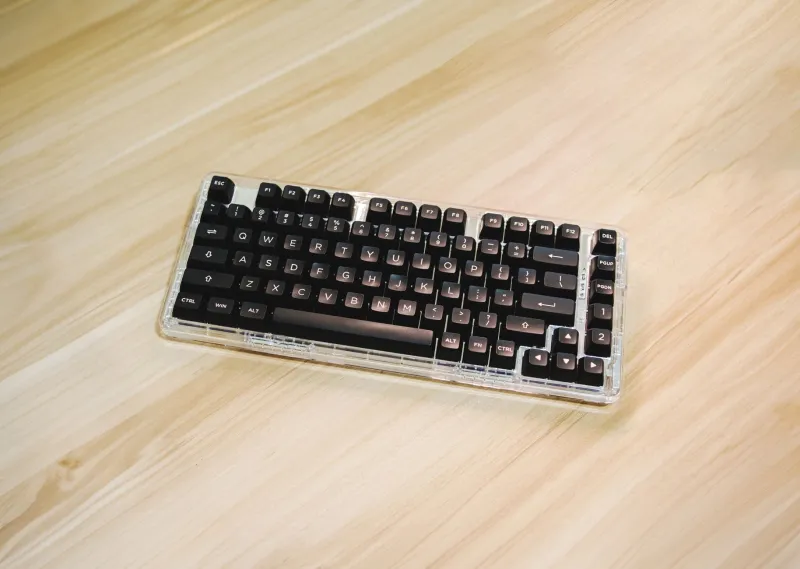
Caps Lock Is Wasting Prime Real Estate on Your Mac

Caps Lock is the keyboard equivalent of a vacant lot in the middle of downtown. It occupies a prime location just left of A, it is easy to hit without looking, and for most Mac users it does one thing: shout. If you have ever typed HALF A SENTENCE IN ALL CAPS by accident, you already know the problem. But the more interesting question is not how to stop hitting Caps Lock. It is what that key could do instead.
Why Caps Lock deserves a second look
Most keys earn their keep. The space bar is obvious. Command and Option are the backbone of macOS shortcuts. Even the humble Escape key has a job, whether you are closing a dialog, exiting a full-screen video, or getting out of Vim insert mode. Caps Lock, by contrast, is a one-trick pony with a hair trigger.
That makes it a perfect candidate for remapping. You are not losing a key you use constantly. You are gaining a high-value modifier in a spot your left pinky can reach without stretching. For writers, developers, and shortcut-heavy Mac users, that is a small change with an outsized payoff.
Three destinations worth considering
There is no single correct answer here. The best choice depends on how you work. These are the three options that make the most sense on macOS.
Escape
If you live in Vim, use modal editors, or spend a lot of time dismissing panels, Caps Lock as Escape feels natural. The key is already under your left pinky, so you can tap it without moving your hand. Writers may not think of themselves as Escape users, but anyone who works in Markdown editors, presentation apps, or full-screen reading tools will find plenty of moments where a quick Escape is useful.
The tradeoff is that you lose a dedicated Control key if you also use Control shortcuts. On a full-size Apple keyboard, you still have the left Control key below Shift. On a laptop, the internal keyboard keeps its own Control key. So this is usually a low-risk change.
Control
This is the classic Unix-friendly remap. Caps Lock becomes Control, which makes Emacs-style navigation shortcuts easier on the hands. On macOS, Control-A and Control-E move to the beginning and end of a line in many text fields. Control-K can kill text to the end of the line. Control-N and Control-P move down and up in some contexts. These shortcuts are not universal, but they show up often enough in terminals, text editors, and macOS text fields to be worth learning.
For developers, Caps Lock as Control is almost a no-brainer. For writers, it can be a quiet productivity boost once the muscle memory settles.
Hyper
Hyper is the enthusiast option. Instead of mapping Caps Lock to a single modifier, you map it to a combination: typically Control, Option, Shift, and Command all at once. Then you assign that combination to app shortcuts, launchers, macros, or text expansion tools. The appeal is simple: Hyper shortcuts are unlikely to collide with anything else. You can create a private layer of commands that belong only to you.
A writer might use Hyper-S to insert a standard signature, Hyper-D to add today's date, or Hyper-T to open a favorite research folder. A developer might use Hyper-G to open a Git client or Hyper-R to run a test command. Shortcut junkies will find dozens of uses. The catch is that Hyper requires third-party software on macOS. Apple's built-in remapping does not offer it.
Built-in remap: fast, safe, and reversible
If Escape or Control is enough, start with macOS itself. The setup takes less than a minute and does not require installing anything.
- Open System Settings.
- Go to Keyboard.
- Click Keyboard Shortcuts.
- Select Modifier Keys in the sidebar.
- Choose your keyboard from the menu.
- Set Caps Lock to Escape, Control, Option, Command, or No Action.
- Click Done.
The change applies per keyboard, which is useful if you use an external board at a desk and the built-in keyboard on the go. It is also easy to reverse. If you miss the all-caps shout, set it back to Caps Lock and carry on.
One caveat: this built-in route only changes the modifier behavior. It does not give you a Hyper key, and it will not help if a third-party keyboard has its own firmware quirks. For those cases, you need a more flexible tool.
Karabiner-Elements for the Hyper key
Karabiner-Elements is the go-to utility for deep keyboard remapping on macOS. It can change keys at the system level, apply rules per device, and handle complex modifications that Apple's settings do not touch.
Install Karabiner-Elements from the official project site, then grant it Input Monitoring permission when macOS asks. Open the app and go to Complex Modifications. Add a rule that maps Caps Lock to Hyper, or create a custom rule that sends the four-modifier combination. The exact rule name varies by version, but the concept is stable: Caps Lock no longer toggles caps; it becomes a modifier combo.
From there, you can assign Hyper shortcuts in apps that support custom keybindings. You can also use a launcher such as Raycast or Alfred to trigger workflows with Hyper combinations. Just be prepared to spend a little time tuning. Karabiner is powerful, but it is not a one-click consumer utility.
Real workflows, real tradeoffs
For a writer, Caps Lock as Control is often the sweet spot. It makes line navigation and terminal work easier without sacrificing Escape. If you use a lot of text expansion, Hyper is more fun, but it adds a dependency and a setup curve.
For a developer, Caps Lock as Escape is the safest bet if you use Vim or modal tools. If you spend more time in a terminal and Emacs-style shortcuts, Control is the better fit. Hyper is best for people who already enjoy building custom shortcuts and want a dedicated namespace for them.
For shortcut junkies, Hyper is the main event. It turns one neglected key into a private command layer. The only real cost is complexity. You need to remember your own shortcuts, and you need to keep Karabiner running.
The bottom line
Caps Lock is not evil. It is just underused. On a Mac, you have three good ways to repurpose it: Escape for modal workflows, Control for terminal-friendly navigation, or Hyper for a custom shortcut layer. Start with the built-in macOS remap if you want a quick win. Move to Karabiner-Elements if you want the full Hyper treatment. Either way, you are trading an accidental shout for a key that actually pulls its weight.