One-Handed Mac: A Dozen Shortcuts for Coffee-Balanced Workdays

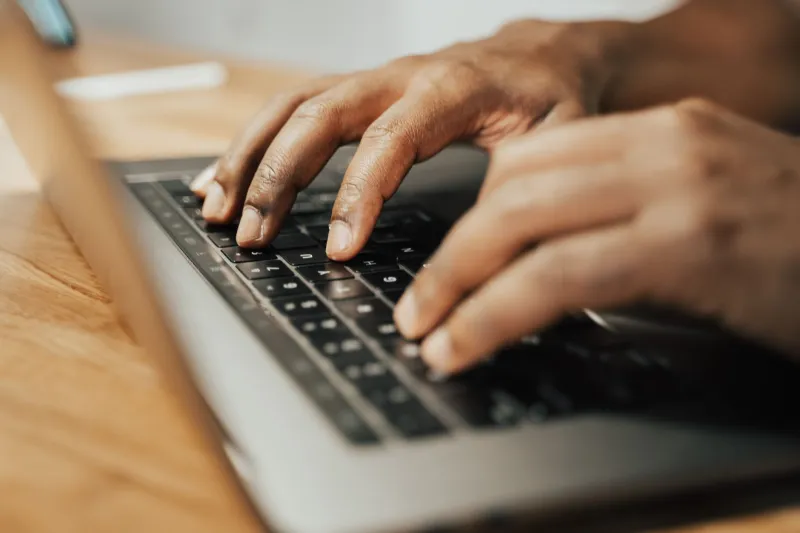
Photo by Photo by Sean on Unsplash on Unsplash
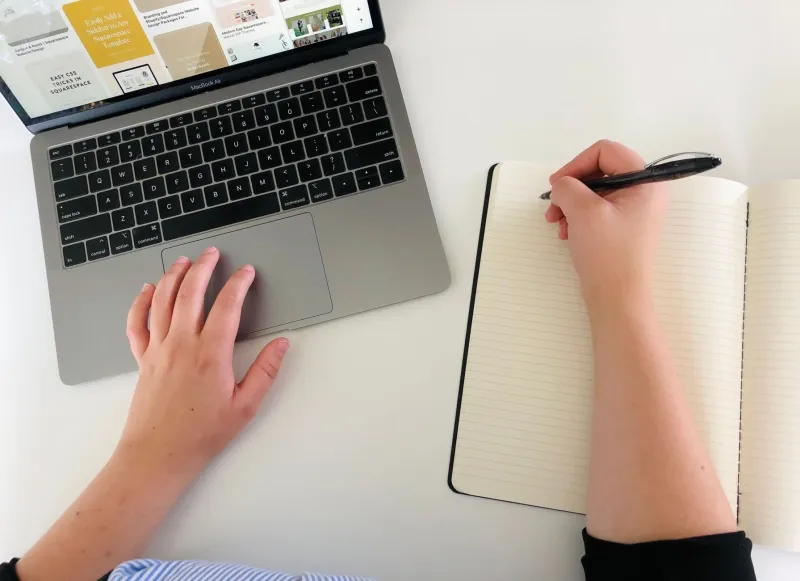
Somewhere between the first sip and the third Slack ping, your other hand disappears. Maybe it is holding a mug, cradling a phone, or scribbling a phone number on the back of a receipt. The Mac does not care. It still expects command input. The good news: a surprising number of macOS shortcuts live entirely on the left side of the keyboard, which makes them real candidates for one-handed operation.
Not every shortcut qualifies. A chord can be technically one-handed and still feel like a game of Twister for your knuckles. I tested the dozen below on a standard Apple Magic Keyboard and a 65% mechanical board with a function layer, looking for three things: whether the keys cluster on one side, whether the chord works without looking down, and whether it survives a compact layout. The winners are below, along with the ones that need a remap.
The ground rules
One-handed means one hand, not one finger. You can use thumb, pinky, and index together. The left Command key is your anchor on almost every shortcut here. Compact boards change the geography: a key that sits under your ring finger on a full-size Apple keyboard may be hiding behind an Fn layer on a 65% board. If a shortcut needs a right-side key like an arrow or Escape, it got cut. That is why Cmd+Option+Esc and most arrow-key navigation did not make the list.
The left-hand all-stars
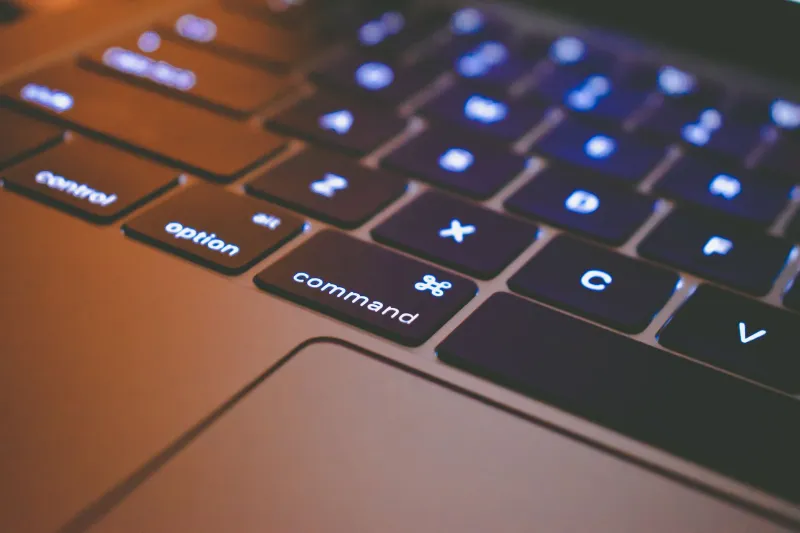
Clipboard trio: Cmd+C, Cmd+V, Cmd+X. Easy on both boards. Copy, paste, and cut are the baseline of one-handed Mac life. On the Magic Keyboard, the left thumb holds Command while the index finger taps C, V, or X. On the compact board, nothing changes. If you can only train three shortcuts, train these.
Undo and redo: Cmd+Z and Shift+Cmd+Z. Undo is a clean left-hand chord. Redo adds Shift, which turns your pinky into a stretch partner, but it is still manageable on the Apple keyboard. On a compact mechanical board with a narrow left Shift, it is slightly tighter but fine. If redo feels like yoga, most apps also accept Cmd+Y, which is easier to reach with one hand.
App switcher: Cmd+Tab. Hold Command with your thumb and tap Tab with your index finger. It works on both boards and is one of the few shortcuts that feels faster one-handed than two-handed. Keep holding Command and tap Tab again to move through open apps.
Spotlight: Cmd+Space. This is a mild claw on the Apple keyboard: thumb on Command, index on Space. On a compact board, the keys are closer, so it is easier. If the angle bothers you, change the Spotlight shortcut in System Settings > Keyboard > Keyboard Shortcuts > Spotlight. I mapped mine to Option+Space and have not missed the default.
Save: Cmd+S. Left side, no drama, works everywhere. It is the shortcut you can hit while balancing a notebook on your forearm. The only caveat is app-specific: some creative apps use Cmd+S for a local save and Cmd+Option+S for a versioned save, so read the menu if something unexpected happens.
The useful but testy ones
Same-app windows: Cmd+backtick. On a full Apple keyboard, this is a reasonable left-hand chord once you know where the backtick lives. On a 65% board, the backtick often shares a key with Escape and hides behind Fn, which turns a one-handed shortcut into a two-handed scavenger hunt. Remap it if you cycle windows often. I use a Karabiner-Elements rule to turn a Hyper+W chord into Cmd+backtick, and it has become second nature.
Full screen: Cmd+Ctrl+F. Three keys, but they are all left-side residents: pinky on Control, thumb on Command, index on F. It works on both boards. On compact layouts, make sure F is not buried under an Fn layer; if it is, remap full screen to a Raycast hotkey or a BetterTouchTool trigger.
Lock screen: Ctrl+Cmd+Q. This is one of the most satisfying one-handed shortcuts on macOS. Pinky on Control, thumb on Command, index on Q. It works on both keyboards and gives you a fast way to lock the Mac when you stand up with your coffee. No awkward reaches, no confirmation dialog.
Full-screen screenshot: Cmd+Shift+3. Easy on the Apple keyboard and easy on a compact board with a top number row. It captures the entire screen immediately. I left Cmd+Shift+4 out of the main list because selection screenshots require a mouse drag, which is not a pure keyboard move. If you need a window capture, Cmd+Shift+4 then Space is still the better tool, but bring your other hand back.
Hide the current app: Cmd+H. Left side, quick, and useful when someone walks up to your desk. It hides the front app without closing it. On both boards, the chord is comfortable. Just remember that hiding an app is not the same as minimizing a window, which trips people up when they go looking for it later.
Close a window or tab: Cmd+W. Easy on both keyboards and dangerously repeatable. One press closes the current tab or window; a second press can close another one before your brain catches up. On a compact board, W is still under your left ring or middle finger, so the physical move is fine. The risk is behavioral, not ergonomic.
Quit an app: Cmd+Q. The easiest shortcut on this list and the one most likely to ruin your afternoon. It sits right next to Cmd+W in muscle memory, which is why people accidentally quit apps when they meant to close a tab. On both boards it is a clean left-hand chord. I keep it, but I have trained myself to pause for half a second before pressing it.
What did not make the cut
Cmd+Option+Esc is the classic force-quit chord, but on a standard Apple keyboard it asks your left hand to reach across the board while your right hand sits idle. Cmd+M for minimize is also awkward on a full-size keyboard because M lives on the right side. Arrow-key navigation, including Option+Left and Option+Right for word jumps, is great with two hands and miserable with one. None of these are bad shortcuts. They are just not one-handed shortcuts.
The remap plan
If you use a compact mechanical keyboard, spend ten minutes in Karabiner-Elements or your board's configuration software. Put the backtick key somewhere your left hand can reach, or map a Hyper key chord to same-app window cycling. Move Spotlight to Option+Space if Cmd+Space feels like a claw. For force quit, create a Raycast or BetterTouchTool shortcut that lives on the left side. The goal is not to relearn every macOS command. It is to make the dozen you use most often fit the hand that is actually free.
The verdict
The best one-handed shortcuts are not the flashiest ones. They are the ones that sit in a tight left-hand cluster, work without looking, and survive a smaller keyboard. Copy, paste, undo, app switching, Spotlight, save, lock screen, and the screenshot chord earn their keep. The rest are useful with a caveat or a remap. Coffee in one hand, Command in the other: that is a workday the Mac can actually support.