Asleep at the Switch: When Your Mechanical Keyboard Won't Wake the Mac
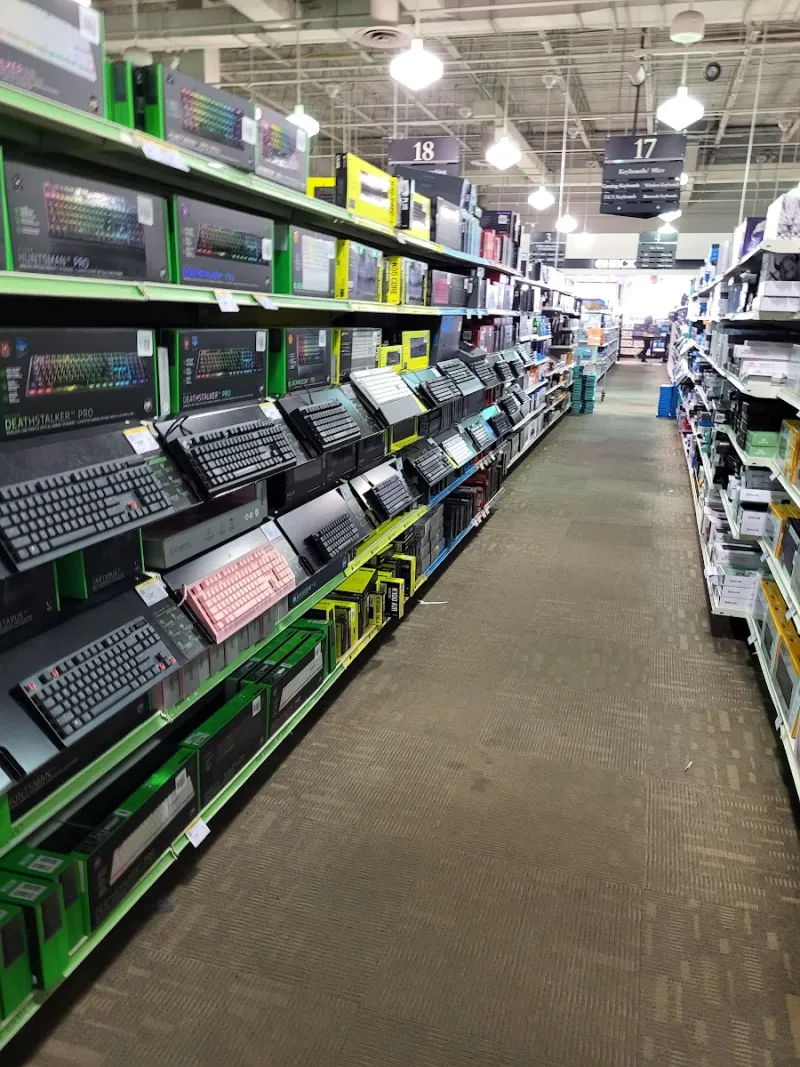
Photo: Punker1999, CC0, via Wikimedia Commons
There's a particular kind of quiet that happens when you tap a key and your MacBook stays black. No cursor, no chime, nothing. Just you, a very expensive keyboard, and the growing suspicion that one of them is broken.
Before you box up the board and write an angry review, know this: waking a Mac is a chain of custody problem. The keypress has to be generated, transmitted, received, interpreted, and then honored by macOS's power manager. Any link in that chain can drop the request, and the keyboard is honestly the least likely suspect. This guide walks the chain in order, with a ten-minute test matrix you can run before you blame anybody.
Wake Is a Chain, Not a Button
When you press a key on a sleeping Mac, the keyboard sends a standard HID report. That report travels over USB or Bluetooth, gets picked up by the appropriate controller, and macOS decides whether this particular input is allowed to interrupt sleep. The board did its job the moment it sent the packet. Everything after that is plumbing.
This matters because the symptoms look identical. Whether your hub stopped forwarding the signal, or macOS ignored it, or the firmware never sent it in the first place, you see the same black screen. So we test the chain in order, cheapest link first.
A useful side note: many boards swallow the first keypress after sleep. The Mac wakes, but the character doesn't land. That's not a failure, it's a design choice. Your board spent that keystroke on the wake request.
Split the Problem: Bluetooth vs. Dongle
These two paths behave so differently that they deserve separate diagnoses.
A 2.4 GHz receiver enumerates as a plain USB keyboard. It wakes the Mac the same way a wired board does, through the USB bus. Simple, predictable, and easy to test.
Bluetooth is fussier. The Mac has to keep the radio in a state where it can hear incoming HID traffic, and depending on your Mac and macOS version, there's a setting that governs whether Bluetooth devices are allowed to wake the machine at all. On many Intel Macs you'll find it under System Settings > Bluetooth > Advanced ("Allow Bluetooth devices to wake this computer"). On Apple Silicon it's often absent, which doesn't mean the feature is gone, just that Apple decides for you. If that checkbox exists on your machine and it's off, congratulations, you may have just found your bug in four seconds.
Bluetooth boards also have their own sleep timers. A board that goes into a deep low-power state after ten minutes of idleness may take long enough to reconnect that the Mac has already given up. The fix there lives in the keyboard's configuration software, not in macOS.
The Ten-Minute Test Matrix
Run these in order. Stop at the first one that works, because everything before it is now a suspect.
| # | Setup | What a pass proves |
|---|---|---|
| 1 | Board wired directly to the Mac, no hub | The board and macOS agree on wake |
| 2 | 2.4 GHz dongle directly into the Mac | The receiver path is healthy |
| 3 | Dongle through your usual hub or dock | Whether the hub is the problem |
| 4 | Bluetooth, wake setting confirmed | Whether the radio path is at fault |
| 5 | Any of the above on a second Mac | Whether it's the board or the machine |
Put the Mac to sleep between each test (Apple menu > Sleep, or just close the lid). Wait a full minute so it settles into a real sleep state rather than the first drowsy stage. Then press a single letter key, not the space bar, not a media key. Some boards treat those differently.
If test 1 fails, the board or the Mac's USB wake behavior is at fault and you can skip everything else. If test 1 passes and test 3 fails, you've caught your hub red-handed. That's the single most common result, by the way.
Hubs and Docks Are Where Wake Goes to Die
USB-C hubs and Thunderbolt docks love to cut power to downstream ports when the host sleeps. It's an efficiency feature, and it's exactly wrong for a keyboard that needs to send a wake packet into a bus that's no longer listening.
Powered docks generally behave better than bus-powered pucks, because they can keep a trickle of current on the downstream ports. But "generally" is doing a lot of work in that sentence. Some docks have a firmware quirk where they suspend USB ports aggressively and never quite come back cleanly. Others handle wake fine but add just enough latency that the Mac ignores the first report.
The test is trivial: same dongle, same board, direct versus through the dock. Two sleep cycles. If the dock is the difference, you have your answer, and the fix is either a different port, a powered hub, or a $12 USB extension cable that lets you plug straight into the Mac.
macOS Settings Worth a Look
Most of the relevant knobs live in pmset, and reading them is harmless.
pmset -gshows your current power settings, including standby and hibernation behavior.pmset -g log | grep -i wakeshows recent wake events and what triggered them. If you sleep the Mac, press a key, and see nothing in the log, the signal never arrived. If you see a wake event but the screen didn't come on, macOS heard you and chose to ignore you.
That single log line splits the diagnosis cleanly in half, and it's the most underused troubleshooting tool on the Mac.
On laptops, deep standby is the other gotcha. After a long sleep, the machine can drop into a state where only the built-in keyboard, trackpad, or power button will bring it back. That's not a bug and no firmware update will fix it. If your board wakes the Mac after five minutes but not after five hours, you're bumping into standby, not a broken keyboard.
Firmware and the Sleep Handshake
If you're running a QMK or VIA-based board, check the idle and sleep settings in your keymap. Many builds include a low-power timeout that can be shortened or disabled, and some have a dedicated wake-related option buried in the config. It's worth ten minutes with the documentation.
Vendor firmware is a different story. Some boards shipped with a wake bug that was patched quietly a few revisions later. Check the manufacturer's support page for your exact model and revision, not just the model name. A surprising number of "my board won't wake my Mac" threads end with a firmware flash and a sheepish edit.
The Short Version
Test wired first. Then dongle direct, then dongle through the hub, then Bluetooth. Check the wake log. If wired works and the hub doesn't, buy a cable. If nothing works anywhere, it's the board or the Mac's power settings, and the log will tell you which.
Nine times out of ten, the keyboard was fine the whole time. It was just shouting into a room where nobody was listening.